If you spend eight hours a day at your desk, your monitor position matters more than you think. A screen that's too low forces your neck downward. A screen that's too high strains your cervical spine. The wrong distance causes eye fatigue and forward head posture.
The Ideal Monitor Height
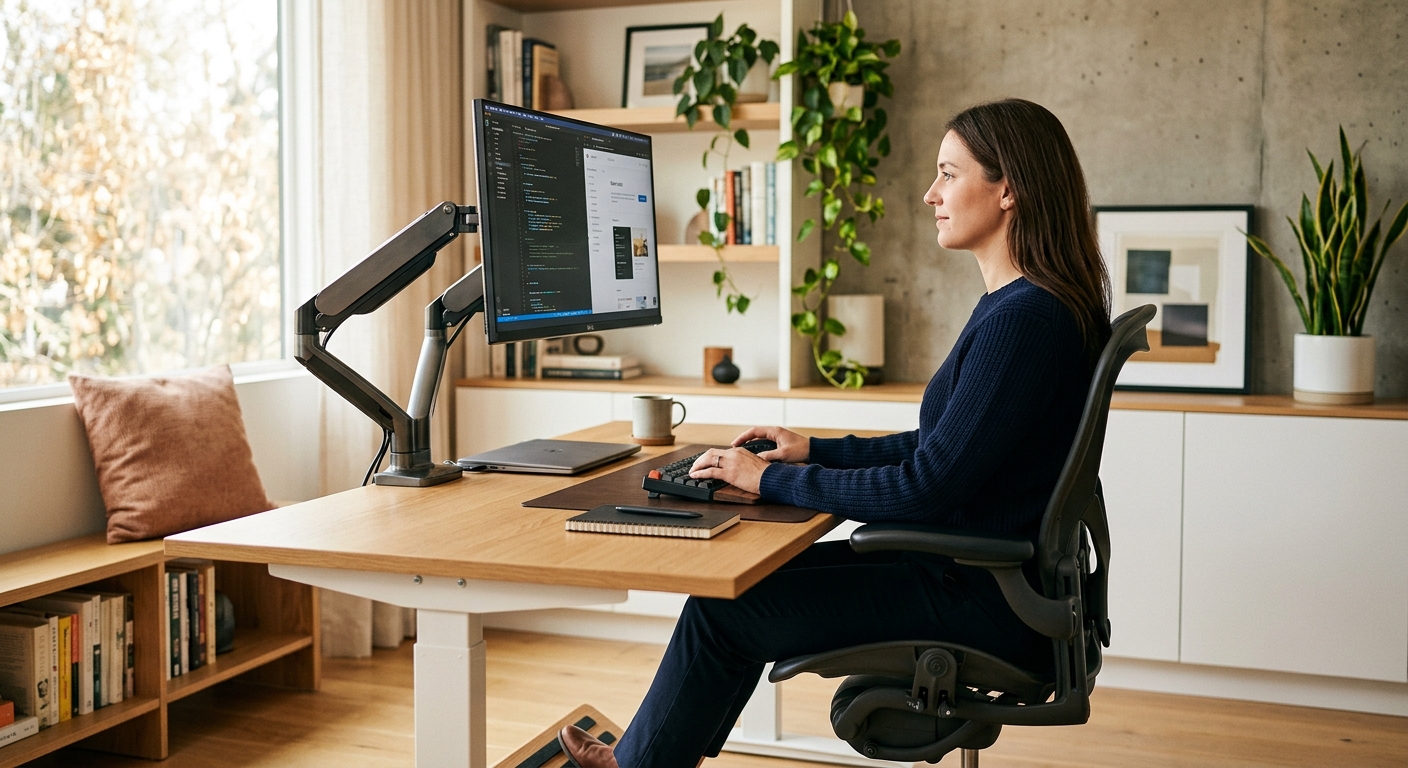
The top edge of your monitor should sit at or slightly below eye level. When you look straight ahead, your eyes should naturally rest on the top third of the screen. This keeps your neck in a neutral position and prevents the downward head tilt that causes chronic strain.
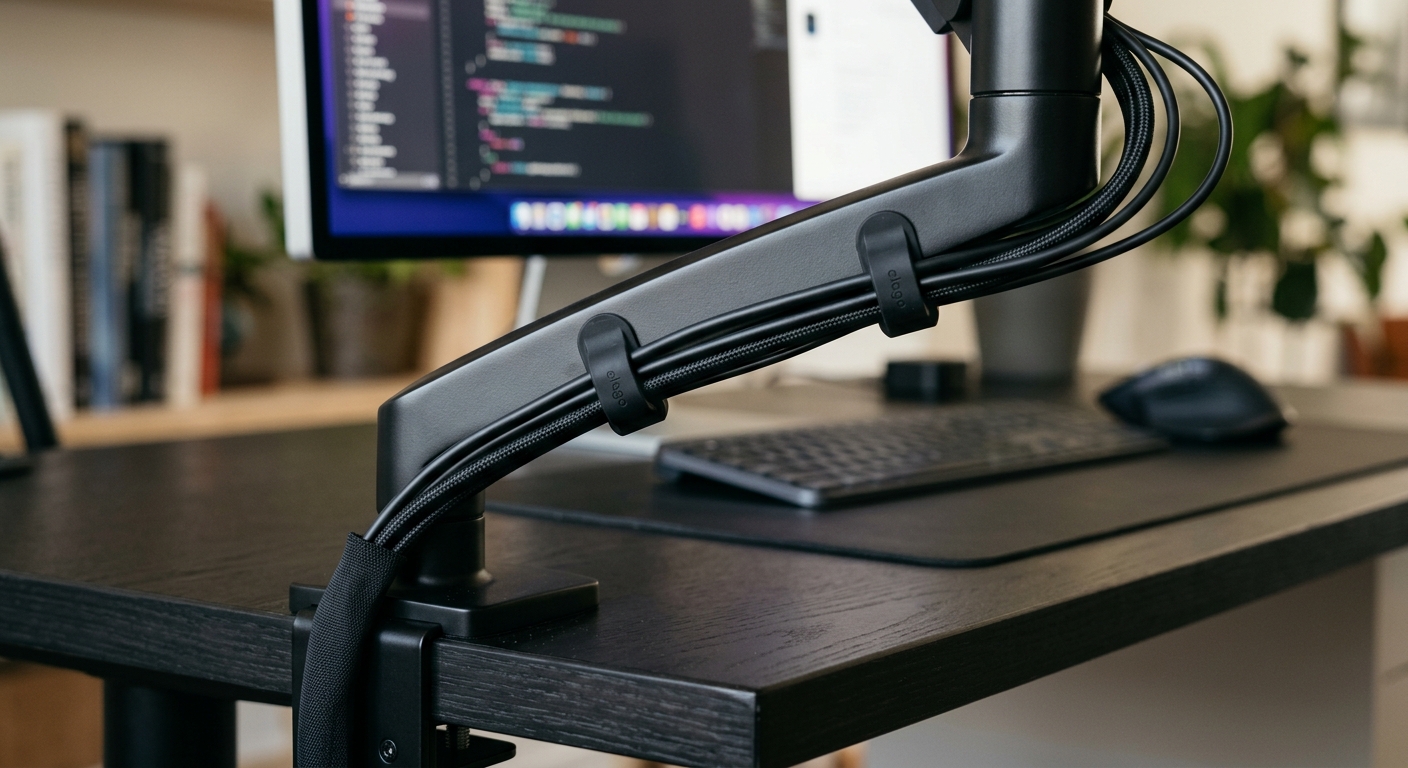
For most people seated at a standard desk (28-30 inches high), this means the center of your screen should be approximately 15-20 inches above the desk surface. A gas spring monitor arm gives you continuous height adjustment without tools, so you can fine-tune the position until it feels right.
The Right Viewing Distance
Your monitor should be an arm's length away — typically 20 to 30 inches from your eyes. If you can touch the screen without fully extending your arm, it's too close. If you find yourself leaning forward to read text, it's too far.
For larger monitors (27 inches and above), increase the distance to 28-36 inches. The goal is to see the entire screen without turning your head.
Tilt and Angle
Tilt your monitor back slightly — about 10 to 20 degrees. This matches the natural downward angle of your eyes when seated and reduces glare from overhead lighting. A full-motion monitor arm lets you adjust tilt independently of height, so you can find the exact angle that works for your seating position.
Multi-Monitor Setups
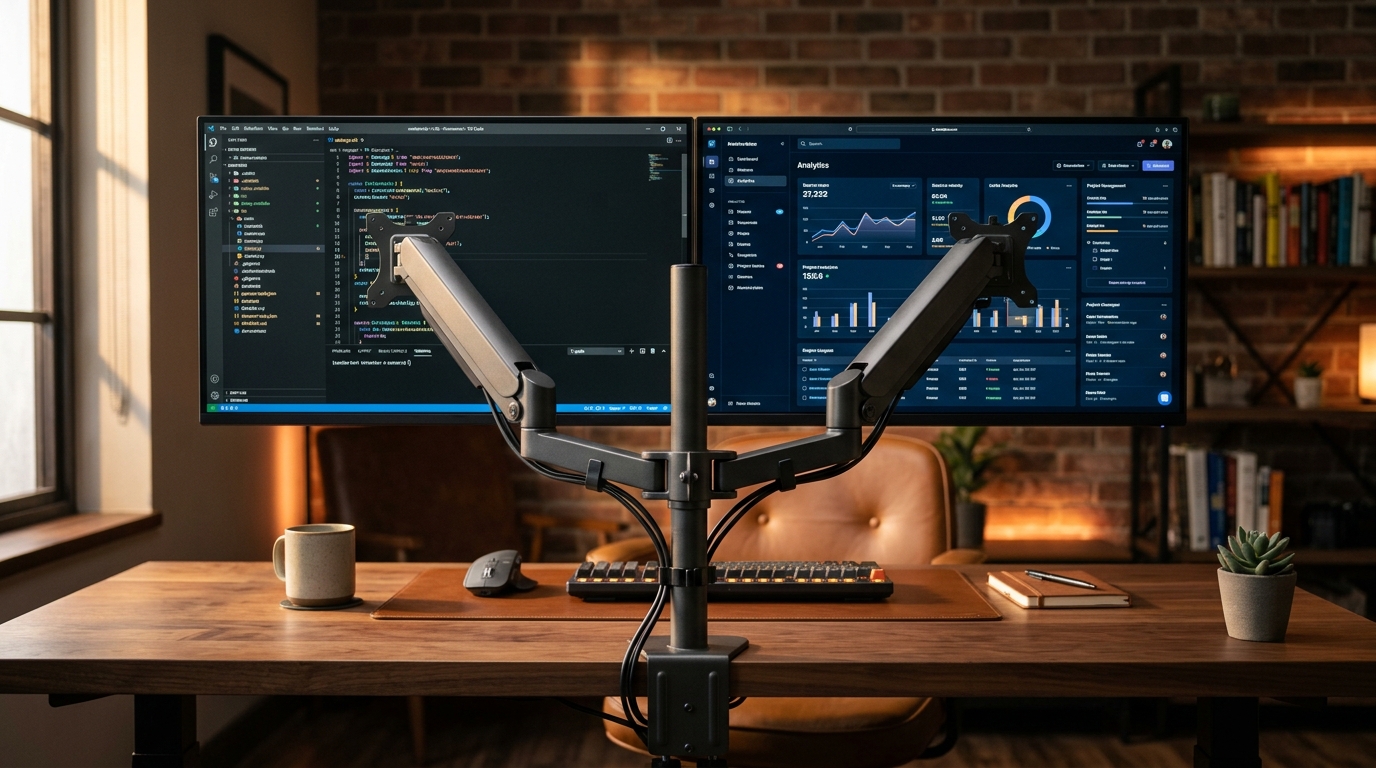
If you use two monitors, position your primary screen directly in front of you and the secondary screen at a 30-degree angle to the side. Switch your primary monitor based on which application you use most frequently. For three monitors, arrange them in a slight curve with the center screen straight ahead.
A dual monitor stand with adjustable arms lets you position each screen independently, ensuring both are at the correct height and angle without creating a gap between them.
Common Mistakes to Avoid
- Stacking monitors vertically without an adjustable stand — the top screen forces your head up, the bottom screen forces it down.
- Placing the monitor on the desk surface without elevation — this is almost always too low and causes forward head posture.
- Ignoring glare — position your screen perpendicular to windows when possible, and use tilt adjustment to minimize reflections.
- Using a fixed mount when multiple people share the workstation — a gas spring arm adjusts in seconds for each user.
Takeaway
Investing 15 minutes in proper monitor positioning can eliminate years of accumulated neck and shoulder strain. A quality monitor arm with gas spring adjustment gives you the flexibility to get it right and adjust it whenever your setup changes.
Browse our collection of monitor arms, stands, and desk accessories.
Shop Now